15 Apple Watch Hacks Every User Must Know
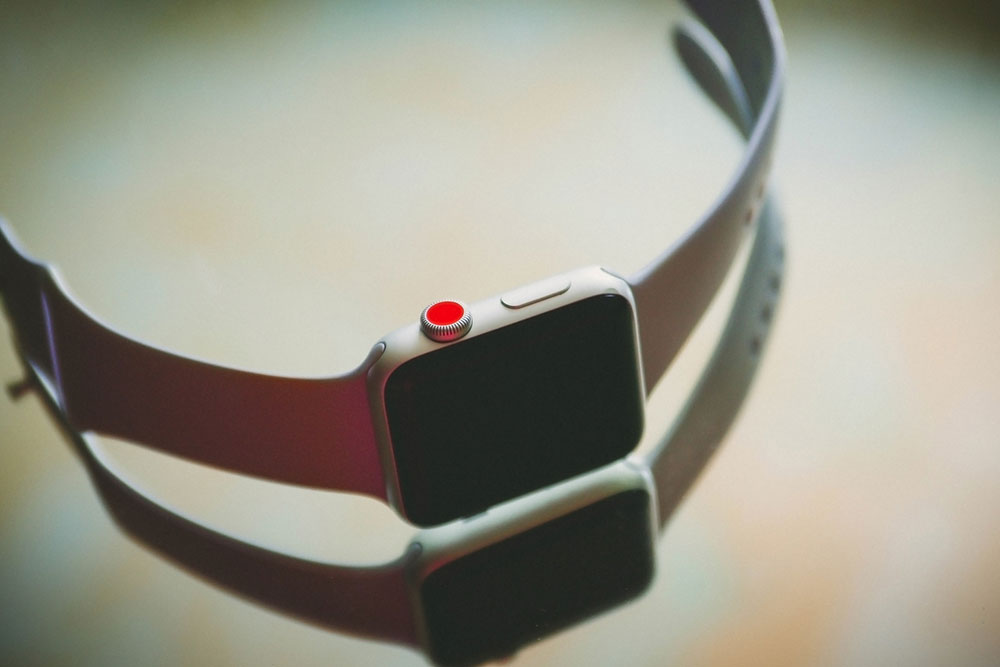
Apple offers a secure and smooth ecosystem and exclusivity with all its products. Popular choices include the Apple Watch Series 8 and Apple Watch Series 9 because of its feature-rich OS. However, there are many built-in features in an Apple Watch that most people overlook because they focus on just the popular ones. These are elements that could otherwise help improve the user experience. Here are 15 such hacks every Apple Watch user must know.
Unlock the iPhone
Users can unlock their iPhones through their Apple Watch. To use it, one needs to open the iPhone and go into “Face ID & Passcode,” located under “Settings.” Once they enter their passcode, the user must scroll down until they find “Unlock with Apple Watch” and turn the settings on.
Use the basic calculator
The Apple Watch Series 8 and Apple Watch Series 9 come with a feature that enables basic calculations. Users must go to the Calculator app on the watch to get the job done.
Take screenshots
To use this, one has to open the Watch app on their iPhone and activate “Enable Screenshots” via the “General” tab. The individual can then take a screenshot on the Apple Watch by pressing the side button and the digital crown simultaneously.
Use the handwashing timer
Individuals can activate the hidden “Turn on the Handwashing Timer” feature listed under “Handwashing” in “Settings.” Doing so will ensure that, when an individual washes their hands, the watch reminds them to keep scrubbing for 20 seconds.
Monitor heart rate
One could keep track of their heart rate on their Apple Watch. To do this, the individual must open the “Health” app on their Apple iPhone, then go to “Browse,” “Heart,” to “Electrocardiograms (ECG).” Here, they must access the toggle called “Set up ECG App.” While this could help take an ECG, one should note that it is not a replacement for a proper health diagnosis by a cardiologist.
Control the Apple TV
To activate this feature, one needs to open the Remote app on the Apple Watch and tap on Apple TV (add the Apple TV if required). Next, they must select it on the Apple TV settings, enter the displayed passcode on the Apple Watch, and once the pairing icon appears, the smartwatch will be able to control the Apple TV as long as it is on the same Wi-Fi network.
Keep water away
Users can take measures to improve the Apple Watch’s water resistance by activating the Water Lock feature under “Control Center,” which can be identified by its water drop icon. When active, the feature prevents the Apple Watch from responding to accidental input while in water.
Turn off the unread notifications LED
A red LED on the Apple Watch usually comes on if there is one or more unread notifications on a smartphone. One can hide this light by opening the Apple Watch app on their iPhone and tapping “Notifications,” where they will find the toggle to turn off the Notification Indicator.
Create favorite timers
Most individuals miss out on the hidden “Favorites” feature in the Timer app on their smartwatch. One can use the tab in the Timer app to create a list of favorite timers on the Apple Watch.
Improve battery health
The Apple Watch series supports optimized battery charging since watchOS 7. While the feature is enabled by default, one should know how to check for it. The individual must open “Battery Settings” and select “Battery Health.” Here, they can toggle on the “Optimized Battery Charging.”
Use low-power mode
To activate Low Power Mode, one needs to swipe up to open “Control Center” on the Apple Watch, tap the bubble that shows the battery percentage, and toggle to Low Power Mode. An individual can turn the feature on for one, two, or up to three days.
Control the Apple Watch with hand gestures
One can activate this feature by opening the “Watch” app on the iPhone and clicking “Accessibility” from the menu on the “My Watch” tab. Next, the user must click “Assistive Touch” from the “Motor” menu and toggle it on. Lastly, one should click “Hand Gestures” from the “Inputs” menu and toggle it on. Doing so will give users access to select gesture navigations.
Change digital crown orientation
Users can switch the orientation of the digital crown on their smartwatch. Under general settings on the Apple Watch, one must select “Orientation” and select left or right based on which way they want the Apple Watch digital crown to face. This could help users, considering that everyone might wear the watch on their left or right hand.
Hop onto a group Facetime
Apple Watch devices can engage in group FaceTime. This is a new feature bundled with watch OS10 that lets one engage in a Group FaceTime audio-only call with up to 32 people. Each time another participant speaks, their photo will expand in the watch view.
Keep apps open longer
The Apple Watch Series 8 and the Apple Watch Series 9 are set, by default, to return to the clock or watch face from an app after two minutes from when the individual lowers their wrist or leaves the watch idle. Those who need the app to open longer could go to general settings on the smartwatch and select “Return to Clock.” Change the toggle from “Always” or “After 2 minutes” to “After 1 hour.” Alternatively, one could also scroll down and customize the return to clock setting for each individual app downloaded on the Apple Watch.